Office Suite Deployment
Usually the applications are deployed by Windows Installer (MSI) installation technology. But that doesn’t work if you’re trying to install volume licensed versions of Microsoft Office Suite 2019 or higher. To install them, it’s necessary to use an alternative installation method using Office Deployment Tool (ODT).
The Office Deployment Tool uses Click-to-Run to do the installation, instead of using Windows Installer (MSI). But, products of Office Suite are still activated by volume activation methods, such as Key Management Service (KMS) or Multiple Activation Key (MAK).
Get Started
To work with the service, go to Office Customization Tool (ODT) and choose the products, languages, and application preferences you want to configure. For example, you can create a configuration file that downloads the 64-bit English version of Microsoft Office, or you can create a file that installs the 32-bit English and German version of Office without Access and Publisher and with the license terms automatically accepted. When you’re done, you export the configuration file, which you can then use with the Office Deployment Tool (ODT) or another software distribution solution to deploy Office in your organization.
Create a Configuration File
Follow these steps to create a configuration file that can be used by the Office Deployment Tool or another software distribution solution to install Office.
- Go to Office Customization Tool.
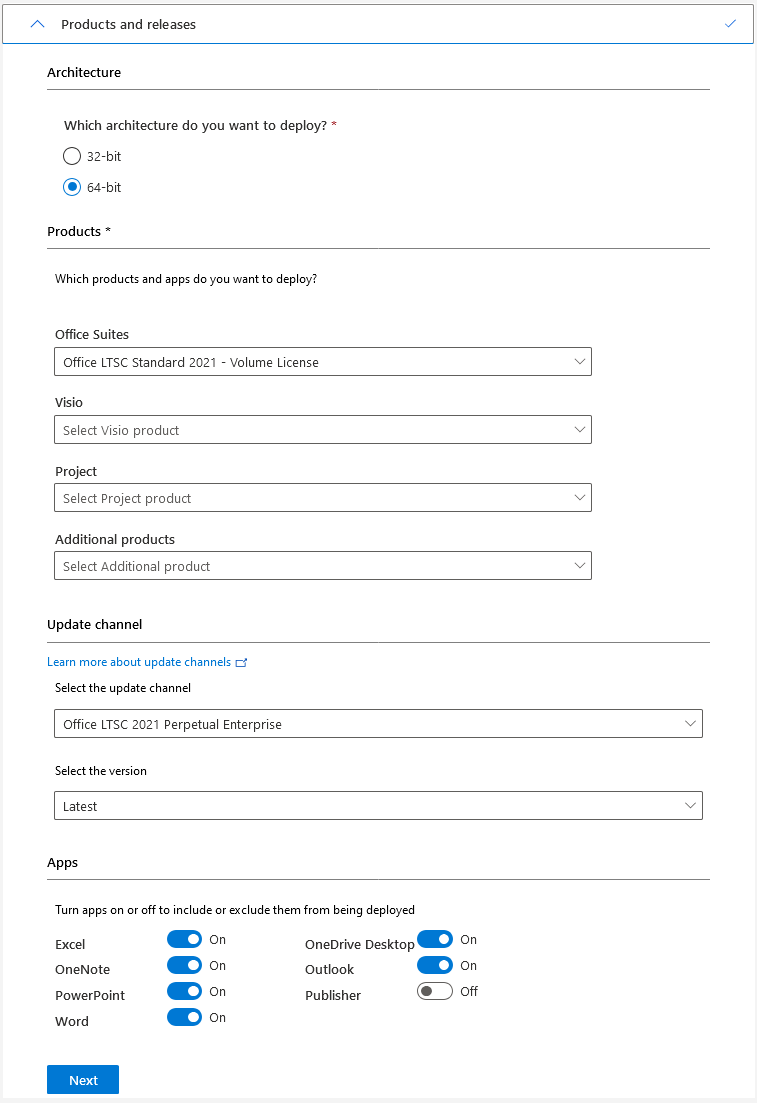
- In the Product and releases section, choose the architecture you want to deploy. Each configuration file can only deploy one architecture. For details on which architecture to choose, see Choose the 32-bit or 64-bit version of Office.
- Choose the products you want to deploy.
- Choose the update channel you want to deploy. The update channel determines how frequently your client devices are updated with new features. For best practice recommendations, see Step 3 - Choose your update channels.
- Choose which version you want to deploy. Unless you require a particular version, we recommend choosing the latest.
- Choose the Apps and Features you want to include.
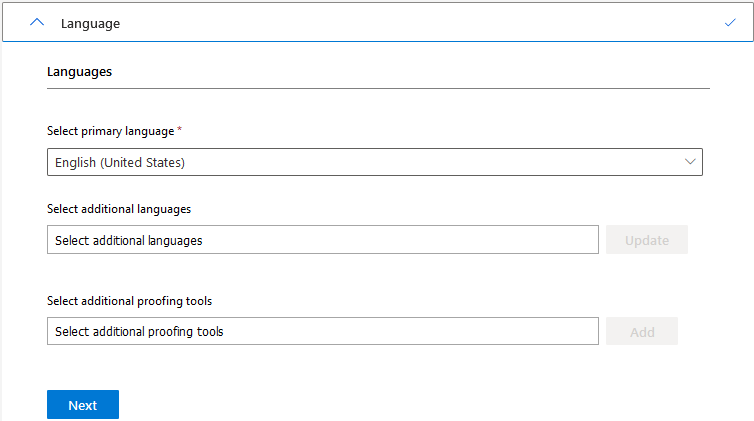
- In the Language section, choose which languages to include. You can include multiple languages and you can select “Match operating system” to automatically install the same languages that are in use on the client device.
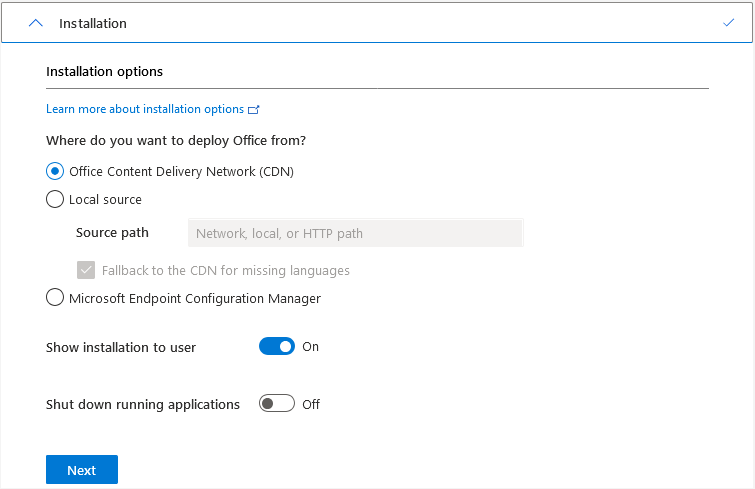
- In the Installation section, choose whether to install the Office files directly from the cloud or from a local source on your network. For more information, see Choose how to deploy.
- Choose whether to display the installation to your end users. For more information, see Display element.
- Choose whether to shut down running applications.
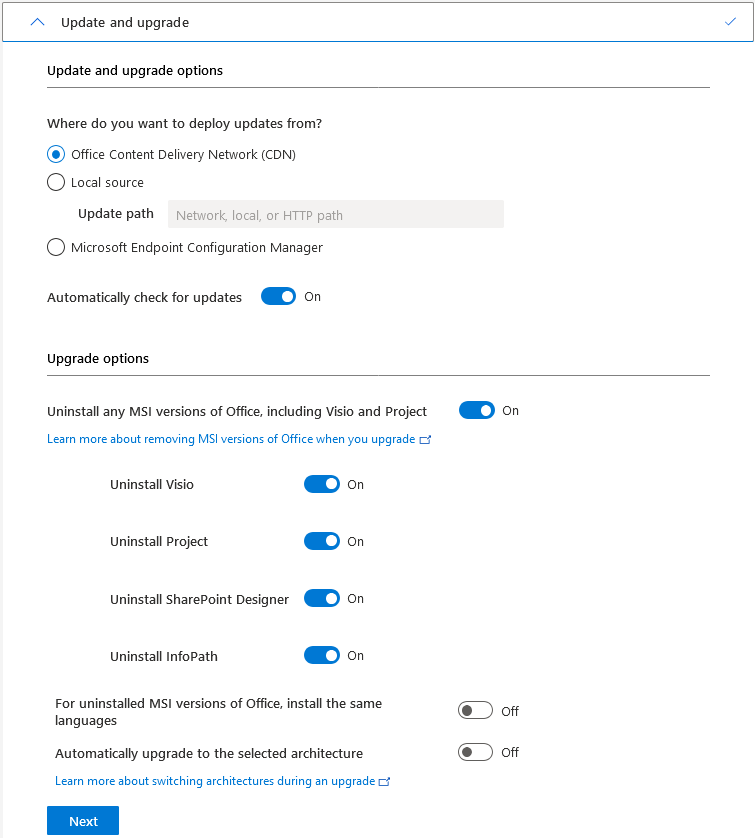
- In the Update and upgrade section, choose whether to install updates directly from the cloud, from a local source on your network, or with Configuration Manager. If you want to update your client devices automatically, select CDN and Automatically check for updates. For best practice recommendations, see Choose your update channels.
- Choose whether to automatically remove all MSI-versions of Office, and whether to automatically install the same language as the removed MSI-version of Office.
- Choose whether to automatically upgrade the architecture.
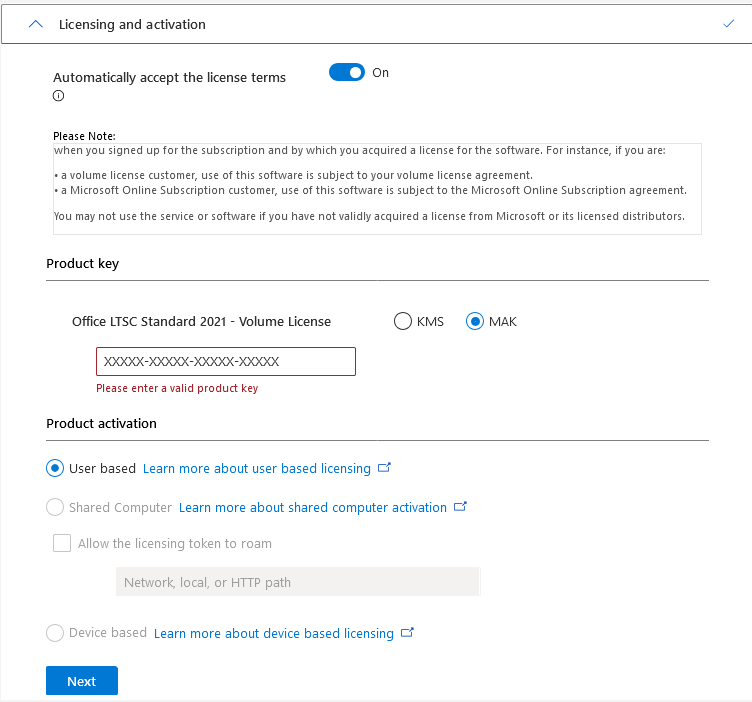
- In Licensing and activation section, choose whether to automatically accept the license terms.
- If you are deploying a volume-licensed version of Office, Visio, or Project, specify the appropriate license key settings.
- Choose how to activate the product, where it be “User based”, “Shared Computer”, or “Device based”.
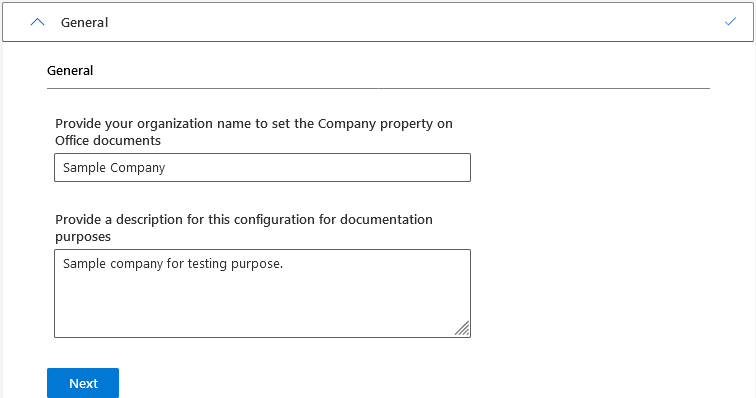
- In the General section, type your organization name and a description for this particular configuration. For example, you might want to use this file to install the 64-bit version of Office for your finance department.
- In the Application preferences section, choose what preferences to apply when deploying Office. You can search for a setting, filter the preferences by Office app, and learn more about each setting by selecting it and reviewing the detailed description.
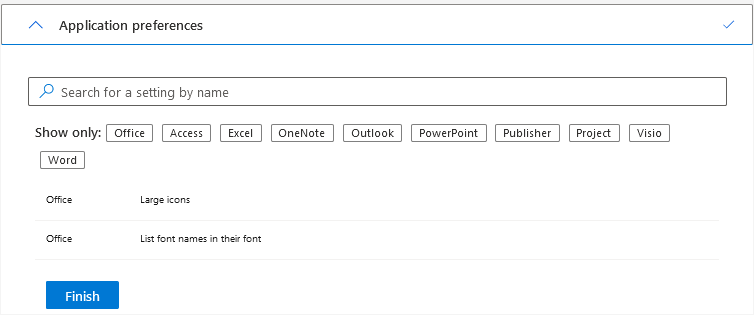
- Select Finish, review the configured settings in the right-hand pane, and then select Export.
- Accept the terms in the license agreement, name the configuration file, and then select Export or, if you’re saving the configuration file to the cloud, select Done.
- You can now use the configuration file in your deployment workflow with the Office Deployment Tool or another software distribution solution.
Edit an Existing Configuration File
- Go to Office Customization Tool.
- Select Import, and then select the configuration file you want to edit.
- Change the settings you want, and then export the updated file.
Download the Office Deployment Tool
- Download the Office Deployment Tool (ODT) from the Microsoft Download Center.
- After downloading the file, run the self-extracting executable file, which contains the Office Deployment Tool executable (setup.exe) and a sample configuration file (configuration.xml).
- Before using the ODT to download or install Office, we recommend making sure you have the latest version.
Deploy using the Office Deployment Tool
The ODT consists of two type of files - executable setup.exe and configuration configuration.xml.
To work with the tool, you will need generated configuration define product and options that might be applied.
Then run setup.exe from the command line provide the location of the configuration file.
- To download Office products and languages, use download mode. When you download Microsoft Office to a folder that already contains that version of Office, the ODT will conserve your network bandwidth by downloading only the missing files. For example, if you use the ODT to download Office in English and German to a folder that already contains Office in English, only the German language pack will be downloaded.
Example:
setup.exe /download downloadconfig.xml
- To install the downloaded Microsoft Office products and languages on a client computer, use configure mode. You also use configure mode to remove and update Office products and languages.
Example:
setup.exe /configure installconfig.xml
- To apply new application preferences to client computers that already have Microsoft Office installed, use customize mode. This mode will apply only application preferences, without changing any other deployment settings.
Example:
setup.exe /customize preferencesconfig.xml